
Hansley Timelapse is a timelapse app for Mac designed to make it easy to create time-lapse videos from multiple capture sources. It lets you record a timelapse using your Mac’s built-in camera, an external USB webcam, an iPhone via Continuity Camera, or a full-screen capture of your Mac’s display.
The goal is simple: to help content creators, videographers, editors, developers, artists, and visual professionals document a process over time without a complicated setup. Whether you want to film behind-the-scenes content, track a project’s progress, capture a software workflow, or create an original video for social media, Hansley Timelapse provides a straightforward, fast solution designed for modern workflows.
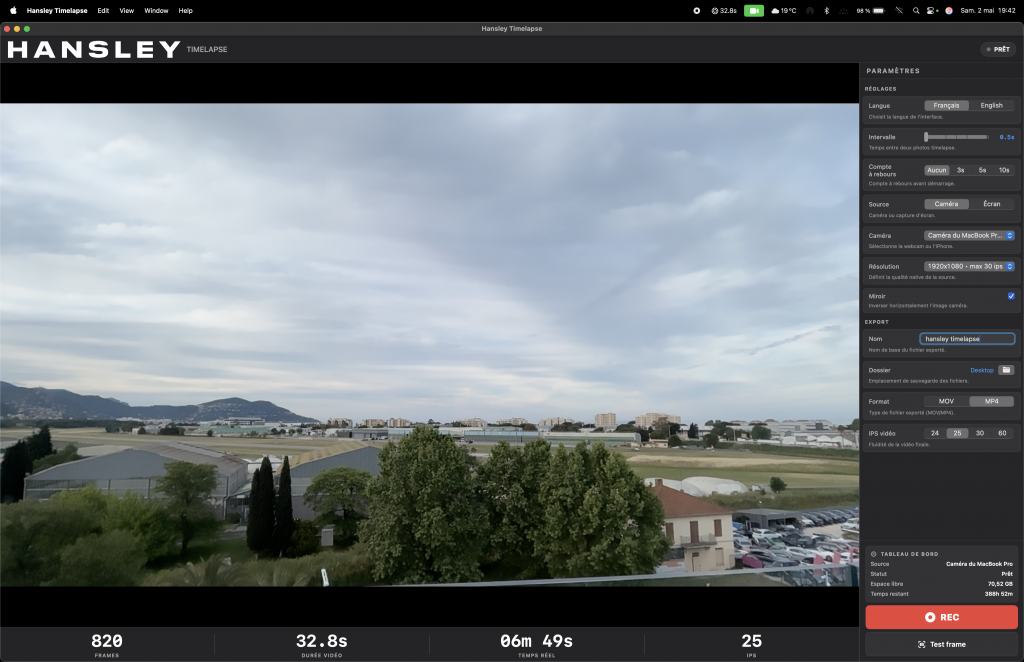
With its live preview, precise interval settings, countdown, pause/resume function, and MOV or MP4 export options, the app makes it easy to create timelapses directly on macOS.
Creating a timelapse can quickly become complicated when you have to manage an external camera, image files, editing software, and manual settings. Hansley Timelapse simplifies the process by bringing the essential features together in a single Mac app.
Choose your capture source, set the interval between frames, select the output folder, and start recording. The app then captures frames at regular intervals and generates a ready-to-use time-lapse video.
This approach saves time, especially on projects that require long recording sessions. Instead of assembling images manually or managing several different tools, Hansley Timelapse brings the entire workflow into one simple interface.
The app can be used for short projects, such as a creative demonstration, as well as longer recordings that track an edit, a drawing, a 3D print, a film shoot, or a manufacturing process.
Hansley Timelapse is not limited to a single video source. The app can capture from several devices, making it useful in a wide range of production environments.
Your Mac’s built-in camera lets you create a timelapse quickly without any additional equipment. It is a convenient way to film a workspace, a desk, a simple setup, or a straightforward process.
This option is particularly useful for creators who want to start recording quickly without setting up a dedicated camera.
Hansley Timelapse can also use an external USB webcam, giving you more flexibility over the angle and camera position, as well as potentially higher image quality depending on the model.
This setup is ideal for filming a workstation, workshop, editing suite, creative desk, or production space.
With Continuity Camera, you can use an iPhone as the capture source. This is a major advantage when you want higher image quality than a standard webcam while keeping the setup lightweight.
The iPhone becomes a convenient camera for creating a polished timelapse, with higher resolution, better optics, and greater framing flexibility.
Hansley Timelapse can also create a timelapse from your Mac’s screen. This feature is useful for recording a digital workflow, such as video editing, photo retouching, web development, graphic design, 3D modeling, or any other computer-based task.
Instead of producing a long conventional screen recording, a timelapse condenses minutes or hours of work into a short, engaging video that is easy to share.
The capture interval is one of the most important settings when creating a timelapse. Hansley Timelapse lets you fine-tune this interval to suit the type of scene or project and achieve the desired final result.
A short interval produces smoother motion, making it suitable for fast actions or clearly visible movements. A longer interval condenses slower events, such as a project’s progress, changing light, an installation, or a task that takes several hours.
The app offers a flexible range of settings, with intervals from fractions of a second to several dozen seconds depending on your needs. This makes it possible to create both very smooth time-lapse videos and more widely spaced timelapses suited to long recording sessions.
This precise control avoids creating unnecessarily large files while retaining enough frames to achieve the desired result.
Hansley Timelapse is designed to remain easy to use throughout a recording session. The live preview lets you check the framing before and during recording. This is essential to avoid running a timelapse for minutes or hours with a poorly composed shot.
The pre-recording countdown gives you time to prepare the scene, get into position, or start an action at the right moment. It is especially useful for creators working alone.
The pause/resume function lets you temporarily stop recording without having to restart the entire session. This is useful when you need to interrupt a process, move an object, correct a mistake, or wait for the next stage of a project.
These features make the app more practical and comfortable to use in a real production environment, not just for quick or occasional projects.
Once the timelapse is complete, Hansley Timelapse can export the video in standard formats such as MOV or MP4. These formats are compatible with leading editing software, video platforms, and social networks.
MP4 is convenient for quickly sharing a video, sending it to a client, or publishing it online. MOV can be useful in a video workflow geared more toward post-production, depending on the project’s requirements.
The app also lets you choose a frame rate, such as 24, 25, 30, or 60 frames per second depending on the configuration. This flexibility allows you to tailor the final result to the style you want: more cinematic, smoother, or better suited to web delivery.
Hansley Timelapse generates a ready-to-use video file without requiring a complex assembly or conversion step.
Hansley Timelapse can be used in a variety of creative, professional, and technical settings. The app is particularly well suited to anyone who wants to show progress, a process, or work unfolding over time.
For videographers, filmmakers, and content creators, a timelapse is an effective way to document the behind-the-scenes work of a shoot or production. It can show a set being built, a camera setup being prepared, lighting being installed, or a full day’s work taking shape.
This type of content works well on professional websites, social media, Reels, Stories, and presentation videos.
Hansley Timelapse is also useful for recording a creative process directly from the screen, including video editing, color grading, photo retouching, music production, website development, or graphic design.
The timelapse format makes a lengthy process easier to follow and more engaging. A session lasting several hours can become a short, clear video that is enjoyable to watch.
The app can be used to track a project’s progress over time, including 3D printing, drawing, painting, manufacturing, technical installation, set construction, or setting up a space.
In this case, the timelapse provides a visual record of the project and turns a real-world process into compelling content.
Timelapse videos are particularly well suited to short-form content. They quickly capture attention by showing a transformation, progression, or complete process in just a few seconds.
Hansley Timelapse can therefore be used to create content for Instagram, TikTok, YouTube Shorts, LinkedIn, or a professional portfolio.
Hansley Timelapse was built around a simple idea: provide a focused tool without unnecessary complexity so you can quickly create timelapses on a Mac. The app is not intended to replace full-featured editing software. It addresses one specific need: capturing a scene, screen, or process at regular intervals and then generating a usable video.
This specialization is an advantage. It provides a clearer interface, a shorter learning curve, and a more direct workflow. For a video creator, editor, or visual professional, that means fewer steps and more time to focus on the content.
Hansley Timelapse can fit into a broader workflow. The exported video can then be edited, reframed, color graded, enhanced with text, or incorporated into a final video.
There are several ways to create a timelapse, including using a camera, capture software, manual editing, or image-sequence assembly. However, these methods often require more time, more settings, and more steps.
A dedicated timelapse app simplifies the creation process. It provides an environment designed specifically for this type of video, with essential settings immediately accessible. This avoids the need for multiple tools and saves time on technical tasks.
Hansley Timelapse is therefore ideal for users who want fast, polished results that are easy to export. The app is suitable for both personal and professional use, especially for creators who regularly produce video content.
Hansley Timelapse is available for Mac and makes it easy to create time-lapse videos from different capture sources. The app is designed for users who want to produce polished timelapses without a complicated workflow.
Whether you want to film behind-the-scenes content, record a time-lapse screen capture, track a creative project, or produce content for social media, Hansley Timelapse offers a simple and effective way to create a timelapse on a Mac.
 English
  French